
Quick-And-Easy iPhone Tricks
Are you smart enough to use your iPhone? A cheat sheet: change Siri’s accent, identify planes, find a lost phone, lock rotation, use it as a hotspot or a TV remote, and more.
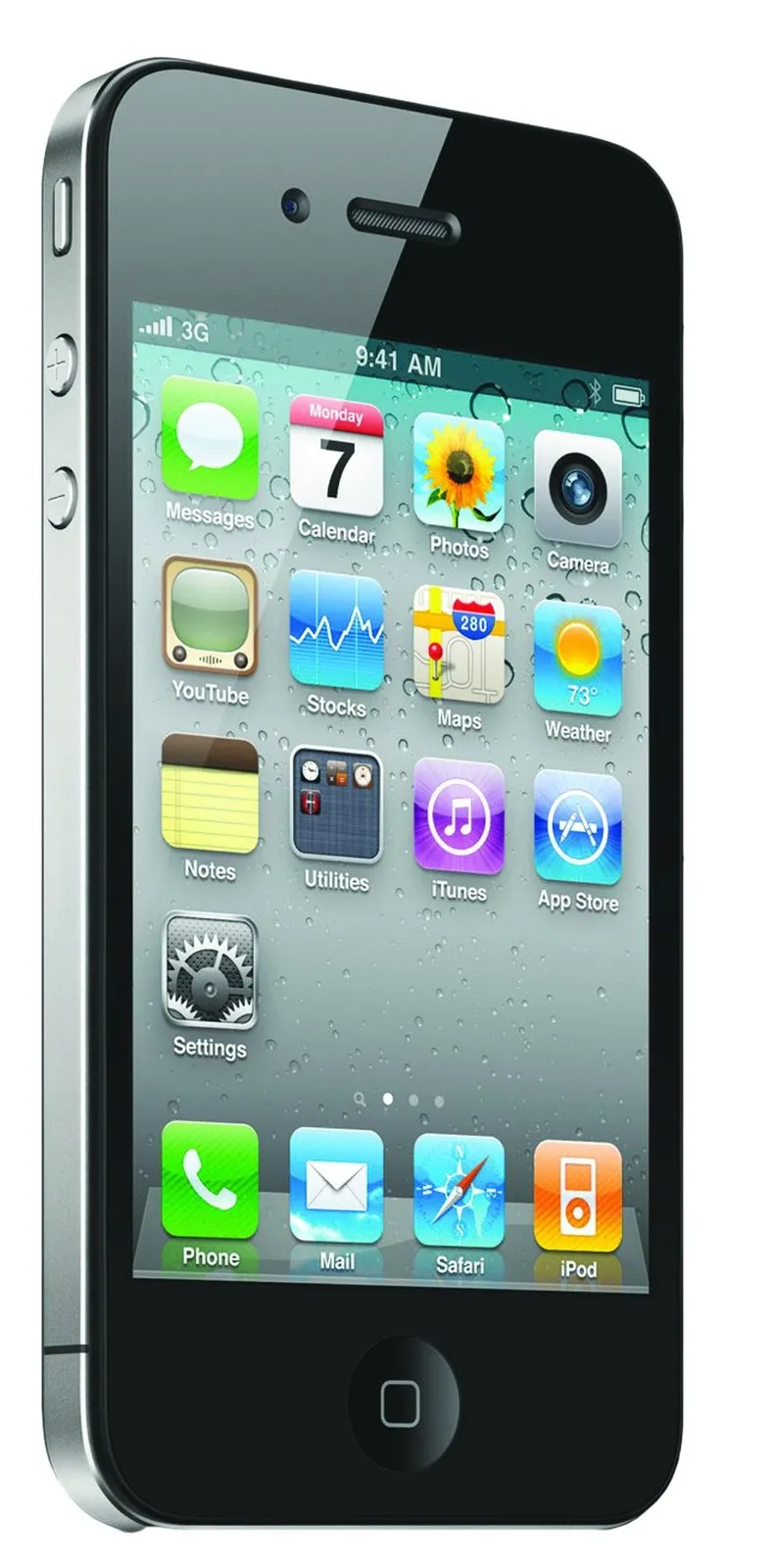



Are you smart enough to use your iPhone? If not, then here’s a cheat sheet…
- Scroll faster from the bottom to the top of the list: Just click the clock at the top of the screen to directly reach the top of the library, contacts, e-mail, and websites.
- Drop a pin in Maps: You can mark your desired location on the map by tapping the location on the screen. A purple pin will mark it.
- Change Siri’s accent and gender: Go to General Settings, look for Siri. From there, a Language option gives you five choices for Siri’s vernacular – English (Australia), English (United Kingdom), English (United States), French, and German. The British Siri is a man.
- Identify the plane: With the help of the search engine Wolfram Alpha, Siri can identify planes like Boeing 787 and reveal their itinerary. Even the ones that just flew over your head.
- Locate your lost iPhone: Set up iCloud, then go into the iCloud settings and enable Find My iPhone. Or just download the Find My iPhone app. Once you sign up, you can track your phone on a map. You can also force lock the phone, play a tone, display an alert message and erase its memory.
- Stop mindless screen rotation: Double click the home button and it will bring out a list of recently opened apps. Swipe the list from left to right until you spot the grey icon with a circular arrow in the far-left button. Touch the icon and a message will come up reading, “Portrait Orientation Locked.” Now even if you do a somersault, the screen will remain vertical.
- Take a picture, faster: When the screen is locked, double click on the home button. A camera icon will appear at the bottom of the screen, and tapping this button will directly take you to the camera.
- iMessage is free: Yes, it’s free across continents. Use it when you’re travelling abroad to cut down on expensive international data plans and text services.
- Parental control: If you don’t want your young ones to access the web or listen to explicit language, go to Restriction under General Settings where you’ll find loads of options to control who gets to access what. Enable Restrictions and set a passcode.
- Customise vibrations: To do that for different contacts, go into Accessibility under General Settings, scroll down to Hearing and turn on Custom Vibrations. Then head to Sounds, scroll down to Vibration Patterns and tap Vibration. There you’ll find a number of standard options and a final option to Create New Vibration, where you can tap the screen to create a vibration pattern of your own.
- Use it as a wireless router: iPhones with iOS 4.3 can double up as wireless routers in practically no time, enabling you to connect your computer, iPod, or other Internet-compatible devices to the phone’s wireless connection. Under General Settings, look for Network, and then tap Set Up Personal Hotspot. Check with your mobile operator for applicable charges.
- Make it your TV remote: You can control all your audio-video gadgets through your iPhone and can even set reminders. Try the free app BlinQ TV, but to use this app, you’ll have to purchase Apple’s infrared emitter.
- iPhone can help you sleep: The free app Relax Melodies has 41 sounds that you can either listen to individually or in a combination to help you take a power nap or stay focussed.

From the May 2012 issue of FHM India.
Follow FHM India
Spotted a mistake, or your photo used without permission? Report a correction











 in your inbox